Category Archives: Software

A late-stage intro to backups with restic

Some keep talking about restic being the best personal backup system around, while I had to learn that for others, even experienced Linux and MacOS users, it’s an absolute mystery.

Here’s a usage scenario I suggest for restic beginners today.


The Repository Location

The repository is the location where restic will store the backup data.

Let’s not go into local backups or where your particular system mounts removable USB devices. For users with experience on the command line, SFTP will be most approachable for their first off-system restic repository.

The SFTP repository location for this example shall be:

sftp:demouser@backupserver:/home/demouser/restic-repository

I save this to ~/.config/restic/restic-url.txt in my home directory.

Remember to actually create this directory on the destination before initializing it as a repository.


The Repository Password

Repository encryption is derived from the repository password. I have now mostly standardized on random passwords that I keep in a password manager. I save the random password to ~/.config/restic/restic-pw.txt

openssl rand -hex 32 > ~/.config/restic/restic-pw.txt

(This file will contain a line break at the end, which is ignored by restic.)


Repository Initialization and first Backup

DO NOT PANIC before you’ve seen the next section.

restic init \
  --repository-file ~/.config/restic/restic-url.txt \
  --password-file ~/.config/restic/restic-pw.txt
restic backup $HOME \
  --repository-file ~/.config/restic/restic-url.txt \
  --password-file ~/.config/restic/restic-pw.txt

Connecting the Dots

Restic’s extremely basic user interface frequently is in fact a bit of an obstacle in day-to-day-use:

  • restic backup requires to always be passed the include paths on the command line.
  • Same with restic forget, which requires the retention policy on the command line.

I configure restic’s repository through environment variables:

# ~/.bashrc
export RESTIC_REPOSITORY_FILE=~/.config/restic/restic-url.txt
export RESTIC_PASSWORD_FILE=~/.config/restic/restic-pw.txt

For invocations that require options, I create shell aliases:

# ~/.bashrc
alias restic-backup="restic backup --exclude ./Downloads $HOME"
alias restic-forget="restic forget --keep-last=10"
alias restic-check="restic check --read-data-subset 1%"

With environment and aliases in place, restic-backup will back up without any further options, restic-forget will purge old backups and restic-check will check the integrity of a random subset of repository contents.


Regular Restore

For casual backup browsing, restic-browser does exist, but restic mount ~/mnt and a quick dive into ~/mnt/snapshots/latest is my go-to approach on Linux.


PANIC.txt

As with every backup, you MUST be aware of how to access it in case you need it, and in this case, the restic repository password.

I keep instructions similar to this in my password manager’s text notes, along with the restic repository password itself:

restic mount ~/mnt \
  --repo sftp:demouser@backupserver:/home/demouser/restic-repository

Final words

Bootstrapping restic, as it for some reason lacks any sort of configuration file, is a lot harder than it should be. In my work supporting enterprise Linux laptop users, I consistently had a very hard time providing reliable guidance for maintaining their backups. I consider my little drestic wrapper a failure as well.

The above is the bare minimum I can break things down to without straying away too far from stock restic (no wrapper script or shell functions), and with the minor tradeoff of creating the shell aliases.

Have fun and remember to use a password manager. 😊


For restic on Windows, have a look at my previous post.

Restic (on Windows) with REST-server (on Linux)

As I was intending to create a nice multi-client configuration for Restic’s REST-server, I found that Debian comes with all I needed.

Note that this is a configuration that prioritizes automation and availability and at no point relies on interactive entering of passwords or passphrases or an ssh-/putty agent.

You MUST however keep note of a) how to access your backup medium and b) the restic repository passphrase.


REST-Server (on Linux)

For the BACKUP_DIR configuration in /etc/default/restic-rest-server, I’ll go with /var/lib/restic-rest-server:

# lvcreate, mkfs, fstab, mount etc...
chown restic-rest-server /var/lib/restic-rest-server

For good measure, I also add the –private-repos option in /etc/default/restic-rest-server, so every user will only be able to access repositories in the directory hierarchy matching their user name:

# TCP or UNIX listen address.
#LISTEN = unix:/run/restic-rest-server
LISTEN = :8000

# Directory to store backups.
# Note: the server will not start unless this variable is defined.
#BACKUP_DIR = /srv/backups/
BACKUP_DIR = /var/lib/restic-rest-server

# Extra arguments to pass to the server. Run `restic-rest-server --help` to see
# available options. By default, basic authentication is enabled.
ARGS = "\
  --htpasswd-file /etc/restic-rest-server/users.htpasswd \
  --private-repos \
"

An HTTP password for my user mas needs to be set and my user’s backup location created:

htpasswd -B /etc/restic-rest-server/users.htpasswd mas
install -o restic-rest-server -d /var/lib/restic-rest-server/mas

restic-rest-server.service can be started now.

I’m lazy, so I didn’t configure TLS but configured a reverse proxy into a TLS web server that was already running:

ProxyPass        /restic http://localhost:8000
ProxyPassReverse /restic http://localhost:8000

Restic (on Windows)

I have added the directory containing the restic.exe binary to the Windows PATH environment, and also maintain restic configuration as environment variables:

  • The repository passphrase is in restic-pw.txt,
  • the URL for the repository in restic-url.txt, and
  • the list of files to back up in restic-include.txt (no environment for this one).
RESTIC_REPOSITORY_FILE=C:/Users/mas/Apps/restic/restic-url.txt
RESTIC_PASSWORD_FILE=C:/Users/mas/Apps/restic/restic-pw.txt

Contents of restic-url.txt resemble the following:

rest:https://mas:***@backupserver/restic/mas/win11-mas/

Now, I can initialize a repository.

restic init

Behold the first backup:

restic --files-from c:/Users/mas/Apps/restic/restic-include.txt backup

Note that while Windows has awful file system issues with files locked while open for reading, restic has the ability to create and work on a volume shadow copy on the fly, provided it runs with elevated privileges:

restic --files-from c:/Users/mas/Apps/restic/restic-include.txt backup --use-fs-snapshot

For running restic on a schedule, I use the operating system’s built-in Task Scheduler.

Restic on Windows does NOT allow mounting the backups the ways it does on Linux. For browsing the backups on Windows, I therefore use Restic Browser which just springs to life without any configuration, provided the environment variables are in place.

Aggressive NTP configuration on Windows 10

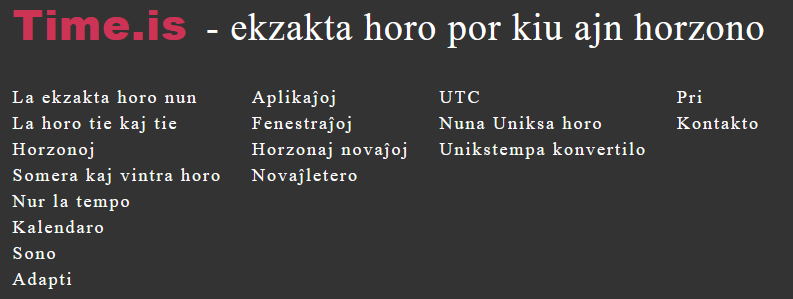
Screenshot of time.is in Esperanto

While clicking around on time.is, which has a nice Esperanto translation that you may want to check out, I kept running into large-ish time offsets of at least several tenths of a second on a Windows 10 machine.

As a Linux guy, my first instinct was to replace the interval-based synchronization option in Windows with an NTP daemon, and so I found Meinberg’s ntpd distribution for Windows. While this ntpd would start flawlessly, over the course of every day it ran into some impossible to debug condition where NTP time reached a significant offset from the system clock again and unlike at startup, the daemon wouldn’t adjust the system clock anymore.

So I turned back to Windows’ built-in time synchronization. Indeed, the people at Meinberg also have helpful advice for it and suggest a few defaults to keep the system clock closely tied to an NTP reference clock. So here’s an attempt at configuring a clean NTP setup on Windows 10.

First of all, the timekeeping service needs to be stopped and fortunately Windows 10 provides the ability to start over with a fresh timekeeping configuration (all following actions must be applied using an administrator role):

net stop w32time
w32tm /unregister
w32tm /register

At this point, the defaults as suggested by Meinberg can be added to the registry:

Windows Registry Editor Version 5.00

[HKEY_LOCAL_MACHINE\SYSTEM\CurrentControlSet\Services\W32Time\Config]
"FrequencyCorrectRate"=dword:00000002
"MaxPollInterval"=dword:00000006
"MinPollInterval"=dword:00000006
"UpdateInterval"=dword:00000064

Finally, a restart of the timekeeping service and configuration of the NTP reference clocks:

net start w32time
sc config w32time start=auto
w32tm /config /syncfromflags:manual /manualpeerlist:"0.pool.ntp.org 1.pool.ntp.org 2.pool.ntp.org 3.pool.ntp.org" /update

NTP synchronization status can be queried using the w32tm command again:

w32tm /query /peers
w32tm /query /status /verbose

In my highly scientific observation of the system, I haven’t seen any clock offsets ever since.

Further reading: “Windows Time Service Tools and Settings” by Microsoft.